Article Summary: Windows 10 reached the end of Microsoft support on October 14, 2025, which means it no longer gets security updates. The computers still work, but any new flaw found in Windows 10 will never be fixed, which makes them easier to attack and can cause problems with compliance and cyber insurance. You have three options: upgrade eligible PCs to Windows 11 for free, pay for Extended Security Updates as a short-term bridge, or replace machines too old to upgrade.
Microsoft stopped supporting Windows 10 on October 14, 2025.
If your business is still running it, and plenty are, your computers aren’t getting security updates anymore.
Everything still turns on and works like normal, which is exactly why it’s easy to put off doing anything about it. The trouble is, the longer you stay on Windows 10, the more security holes pile up that nobody is ever going to fix.
So what does it mean for your business, and what are your options?
There are three: upgrade to Windows 11, pay for extended updates to buy some time, or replace the machine.
Let’s go through what you’re dealing with first.
When Microsoft ends support for a version of Windows, the updates stop. That includes the monthly security patches that fix newly found flaws.
Microsoft has confirmed that since October 14, 2025, Windows 10 gets no more security fixes, quality updates, feature updates, or technical support.
Your PCs don’t stop working. Nothing switches off the moment support ends. What’s different now is that Microsoft has stopped fixing Windows 10’s security flaws.
Attackers and security researchers keep finding new ones, and now nobody’s patching them. So every new flaw that turns up is another way into your computers, and it never gets fixed.
This is about more than an old, slow computer.
CISA puts running supported, updated software on its short list of basic security steps for businesses.
<H2>Your three options</H2>
You’ve really got three options, and most businesses end up mixing them across their computers.
If you bought the PC in the last few years, upgrading to Windows 11 is free, and it’s usually the right move. The catch is the hardware. Windows 11 needs a supported processor, TPM 2.0, and Secure Boot, and that rules out a lot of older machines. To check whether a particular PC qualifies, run Microsoft’s free PC Health Check app.
If a PC can’t move to Windows 11 yet, Microsoft will sell you Extended Security Updates (ESU) to keep the security patches coming for a while longer.
For businesses, that’s $61 per device for the first year, and it doubles every year after that, up to three years.
Keep one PC on Windows 10 the whole time and you’re looking at around $427 over those three years.
Home users get a much cheaper deal. A one-time $30 payment covers up to 10 devices with security updates through October 12, 2027, and it’s free if you sync your PC settings.
ESU gives you security patches and nothing else. No new features, no real tech support. It’s there to buy you time while you sort out the upgrade or a new machine.
Some machines are just too old for Windows 11 and not worth paying ESU on year after year.
For those, buying a new PC that already runs Windows 11 usually works out cheaper, once you add up the ESU fees and the cost of keeping an old machine going.
You don’t have to do all of this at once, but you do need a plan. A sensible order looks like this:
Your IT provider can run that inventory quickly and tell you the best option for each machine.
It still works, but it’s not getting security updates anymore, so the risk creeps up as new flaws are found and left unpatched. If you’re going to keep using it, either enroll in Extended Security Updates or plan your move to Windows 11.
Your PCs will keep running, but they turn into an easier target for attackers, can put you out of compliance with payment and privacy rules, and may cause problems with your cyber insurance. And over time, the apps you depend on will start dropping Windows 10 too.
For businesses, it’s $61 per device for the first year and doubles each year after that, up to three years, which comes to about $427 per device in total. Home users get a better deal: a one-time $30 payment covers up to 10 devices through October 12, 2027, or it’s free if you sync your PC settings.
If it meets the hardware requirements, yes. Windows 11 needs a supported processor, TPM 2.0, and Secure Boot. The PC Health Check app will tell you whether a specific machine qualifies, and PCs from the last few years usually do.
If a PC can’t run Windows 11, a new one is often cheaper than paying escalating ESU fees for years on top of running aging hardware. If it can upgrade, start with the free Windows 11 upgrade.
—
This Article has been Republished with Permission from The Technology Press.
Microsoft has tightened several default settings in Microsoft 365 over the past few years. Newer tenants get more protection out of the box than tenants set up before 2022 or so. The problem is that legacy configurations stay in place. A setting changed for new tenants in 2024 doesn’t retroactively change in yours, and historical user consents, inbox rules, or sharing links granted before the change are still active.
Here are five settings worth checking in your tenant, especially if it’s more than two or three years old, was set up by a previous IT provider, or has not been audited in a while.
A few caveats before we start. Some of these settings require Microsoft 365 Business Premium, E3, or E5 licensing to change, so if a toggle is grayed out, your license tier is most likely the reason. A couple of these changes will generate support tickets from your team because they change how something already works. None of them need to be flipped all at once.
When someone in your organization shares a file from SharePoint or OneDrive, the link they generate has a default scope. In tenants set up before Microsoft tightened the new-site defaults, that scope is often “Anyone with the link,” which means anyone who receives the URL can open the file without signing in. No expiration. No record of who else the link was forwarded to.
Newer Teams-created sites now default to “Only people in your organization.” Older sites and the tenant-level setting often still allow Anyone links. A departing employee who emailed a proposal to their personal account six months ago still has a working link, unless someone manually revoked it.
The default sharing link type sits in the SharePoint admin center under Policies > Sharing. Switching the tenant default to “Specific people” forces every new link to require authentication. You can also set a maximum expiration for any remaining “Anyone” links so they time out automatically.
Rough time to change: 15 minutes. This has no impact on existing links until they’re regenerated.
Microsoft now blocks automatic email forwarding to external addresses at the tenant level by default, through the outbound spam policy. This rolled out as part of Microsoft’s secure-by-default effort.
Forwarding rules created before that change can still be active, though, and tenants with custom outbound spam policies configured years ago may not reflect the current default. A user who set up a rule a few years ago to forward every email to a personal Gmail address may still be exporting your data, depending on how their rule was constructed and whether it predates the policy.
Verify two things. In the Microsoft Defender portal, under Email & Collaboration > Policies & Rules > Anti-spam policies > Anti-spam outbound policy, confirm the “Automatic forwarding rules” setting is set to “Off” or “Automatic – System-controlled.” Then audit existing inbox rules across your users for any forward-to-external configurations. The Microsoft Purview audit log lets you search for inbox rule creation events.
Rough time: 10 minutes to verify the tenant setting, longer to review existing rules across all mailboxes.
A Microsoft-managed user consent policy was enabled by default in July 2025, preventing users from consenting to most third-party applications that request access to their files and sites. New consent requests now route to an admin for review.
The change applies going forward. Apps that were granted user consent before the policy took effect still have whatever permissions they were given, including the ability to read mail, calendars, and files on behalf of the user. Some of those apps may be tools an employee installed years ago and no longer uses, or apps installed during a one-off project that nobody remembers approving.
To review what’s already there, go to Microsoft Entra ID > Enterprise Applications > All applications. Sort by user consent and look at what currently has access to mail, files, or calendars. Anything you don’t recognize or no longer need can be revoked from the same screen.
Rough time: 30 to 60 minutes for the review, depending on how many historical apps are in the list.
The default audit log retention period in Microsoft 365 changed in October 2023. Audit (Standard) logs are now retained for 180 days, up from the previous 90 days. Customers with E5 licensing or the Microsoft Purview Audit (Premium) add-on get one year of retention for Exchange, SharePoint, OneDrive, and Entra ID audit records, with other activity types staying at 180 days.
If you’re in healthcare, financial services, legal, or any other regulated industry, 180 days may not match your retention obligations. HIPAA, the FTC Safeguards Rule, and most state bar rules around client data assume you can produce records on request, and the relevant period is often measured in years, not months.
Audit retention policies live in the Microsoft Purview compliance portal under Audit > Audit retention policies. Extending retention beyond 180 days requires E5 or the Purview Audit add-on. The configuration itself takes about 15 minutes once you’ve confirmed your license supports it.
MFA enforcement is the area most likely to be inconsistent in older tenants. Microsoft introduced Security Defaults in late 2019, and the feature now enforces MFA automatically on new tenants. Microsoft has also been progressively making MFA mandatory for admin actions in the Microsoft 365 admin center and Azure portal through 2024 and 2025.
Tenants created before Security Defaults rolled out may have no baseline enforcement. There’s also a common configuration trap. When an admin enables a Conditional Access policy, which is available with Business Premium and above, Microsoft expects you to take over MFA enforcement through that policy and may turn Security Defaults off. If the transition was done quickly, you can end up with Security Defaults off and a Conditional Access policy that doesn’t cover every user.
Check three places. In the Entra ID admin center under Properties > Manage Security Defaults, confirm whether Security Defaults is on or off. Under Protection > Conditional Access, confirm a policy is actively enforcing MFA for all users, including administrators. Pay particular attention to break-glass admin accounts, which are sometimes excluded from Conditional Access for emergency access reasons and left with no MFA as a result.
Rough time: about an hour, longer if Conditional Access has been configured with several existing policies you need to map.
Some of these changes are silent to your users. Others change how something they do every day works.
Audit log retention (#4) and the historical app consent review (#3) carry no user-facing impact. Start there.
Verifying external forwarding (#2) is silent unless someone has a legitimate forwarding rule, which is rare. Do this next.
The sharing default (#1) will eventually generate user questions, particularly from anyone used to clicking “share” and pasting the link into an email. Communicate the change before you flip the tenant setting.
The MFA and Conditional Access review (#5) is the highest-stakes change and the one most likely to lock people out if it’s done badly. Save it for last and budget the time to do it properly.
Are my Microsoft 365 settings still vulnerable if my tenant was set up recently?
New tenants get more protection out of the box than tenants set up a few years ago. Even so, certain settings, including sharing scope, app consents granted by users, and historical inbox rules, need to be reviewed in any tenant regardless of age.
What is the current Microsoft 365 default for “Anyone with the link” sharing?
At the tenant level, many existing tenants still permit “Anyone with the link” sharing. Newer Teams-created SharePoint sites default to “Only people in your organization.” Verify both the tenant-level setting and the site-level setting if you want to know what your users see in practice.
Did Microsoft turn off external email forwarding by default?
Yes. Microsoft’s outbound spam policy now blocks automatic external forwarding by default at the tenant level. Existing inbox rules created before that change may still be active and worth auditing.
How long are Microsoft 365 audit logs kept by default?
180 days for Audit (Standard), as of October 2023. One year for key workloads (Exchange, SharePoint, OneDrive, Entra ID) if you have E5 or the Microsoft Purview Audit (Premium) add-on.
Does Security Defaults cover all my users?
On a new tenant, yes, including MFA enforcement. On an older tenant that has had Conditional Access policies enabled, Security Defaults may have been turned off, and MFA coverage now depends on how Conditional Access has been configured.
If you’re not sure when your tenant was last reviewed, or whether any of these settings need attention, your IT provider should be able to walk through them with you. And if you don’t have an IT provider, feel free to reach out to us and we’ll help you sort it.
—
This Article has been Republished with Permission from The Technology Press.
Microsoft 365 is a powerful platform that helps a business in many ways. It boosts collaboration and streamlines operations, among other benefits. However, many companies waste money on unnecessary licenses and features that are not fully used.
Fortunately, you can avoid this waste and take your business to the next level by adopting smarter use of M365 security and Copilot add-ons. This article will provide practical insights, help you avoid costly mistakes, and support you in making informed decisions that fit your business objectives.
Even without premium add-ons, Microsoft 365 offers a solid set of built-in security and AI features that are useful. You have tools for identity and access management, such as Azure Active Directory (now Entra ID), multi-factor authentication, single sign-on, and conditional access. The basic plans also deliver threat and malware protection, with built-in scanning for emails, phishing protection through Microsoft Defender, and safeguards for attachments and links.
Depending on your plan, you might also have data loss prevention (DLP) features and tools for auditing and compliance to monitor user activity, support regulatory reporting, and enforce data retention policies. That said, before you adopt premium tiers, you have to scrutinize your needs. By knowing what is already available, you avoid paying for what you won’t use. Moreover, understanding what is included in every plan also helps you avoid overlapping features.
Before we explore solutions, it’s essential to understand how this waste occurs in the first place. Overspending is often not obvious. It is hidden in scenarios that go unnoticed.
As noted earlier, many organizations quickly upgrade to higher-tier plans like E3 or E5, or add premium features for every user, often paying for tools that remain unused.
Another major source of waste comes from licenses that are assigned but no longer in use. Employees may have shifted roles, gone on leave, moved to part-time, or even left the company, yet their premium licenses remain active. If left unchecked, these idle licenses quietly drain the budget, adding up to significant financial loss over time.
Organizations may delete user accounts during offboarding without first unassigning licenses. Deleting a user account does not automatically reclaim those licenses in Microsoft 365. Therefore, unless you manually unassign licenses or set up automation, you will continue paying for unused licenses long after the employee has left.
Microsoft 365’s admin portal does not flag duplicate assignments. This increases the chance that your organization may assign redundant tools or capabilities to a single user. For example, giving someone both an E3 and a standalone Defender license that already comes with E3. This simply means you are paying twice for the same feature.
The good news is that much of this waste can be avoided. With discipline, proper tools, and regulation, you can redirect your budget to a smarter use of Microsoft 365. Below are some of the main strategies to adopt.
Not all users require an E3 or E5 license. For example, why give your receptionist a complete E5 license with enhanced compliance tools if they’re only emailing and using Teams? By monitoring actual usage, you can downgrade such users to E1 or another lower-tiered plan without affecting productivity. Low-usage discovery utilities enable you to downgrade confidently without speculation.
By automating offboarding processes, licenses are unassigned automatically once you mark an employee as departed. Use workflow tools like Power Automate linked to HR systems or forms to revoke access, remove group memberships, convert mailboxes, and unassign licenses in one automated process.
Review your security, compliance, collaboration, and analytics tools to find overlaps. If your plan already offers advanced threat protection or endpoint detection, consider canceling redundant third-party tools. If Copilot add-ons duplicate other AI or automation tools you already use, streamline them under one system.
Many organizations mistakenly assign premium licenses to shared mailboxes, service accounts, or inactive mailboxes. This doesn’t offer any functional benefits. Think about converting them to free shared mailboxes or archiving them to free up license slots. That way, you ensure that your M365 budget is only spent on value-generating users.
Avoid wastage in the future by setting up policy checks and notifications, and make sure you respond as needed. Note down renewal dates for contracts so you don’t accidentally auto-renew unused licenses. Also, track levels of inactivity and flag for review licenses that have passed the threshold.
Don’t let Microsoft 365 licenses and add-ons quietly drain your resources. Take control by reviewing how each license is used. When you match your tools with actual business needs, you save money, simplify management, and improve productivity in your organization.
Optimizing your Microsoft 365 environment is all about getting the most value from what you already own. By using M365 security and Copilot add-ons wisely, your business can operate more efficiently and securely. If you’re looking to better manage licensing and make smarter technology decisions, reach out to our team of experts who have helped organizations do exactly that. Let’s get started today.
—
This Article has been Republished with Permission from The Technology Press.
Microsoft 365 is a strong set of tools created to make working together and staying safe easier on many devices and systems. It has well-known programs like Word, Excel, PowerPoint, and Outlook, as well as new ones like Teams and OneDrive. With its powerful features and cloud-based services, Microsoft 365 gives businesses a complete way to organize their operations and boost communication. This post will talk about ten important tips that will help you get the most out of your Microsoft 365 apps.
Microsoft 365 isn’t just a bunch of office programs; it’s a whole ecosystem that helps people work together, control their data, and stay safe. Some of the most popular tools and features include:
Microsoft Teams is a central hub for communication and teamwork that lets users share files, hold meetings, and easily connect to other Microsoft apps. OneDrive also offers safe cloud storage, so users can get to their files and share them from anywhere. To keep private data safe, Microsoft 365 also has advanced security features like multi-factor login and data encryption.
One great thing about Microsoft 365 is that it lets people work together in real time. Multiple people can work on papers at the same time with tools like Excel and Word. This makes them more productive and reduces the need for version control. Also, Microsoft 365 works with other useful programs, such as Power Apps and Power Automate, which let users create their own apps and make work more efficient.
Microsoft Planner is a visual tool for keeping track of projects and tasks that works with Microsoft 365. It gives teams a central place to make plans, give tasks, and keep track of work. This tool is great for keeping track of complicated projects and making sure everyone on the team is on the same page.
Along with these tools, Microsoft 365 comes with Microsoft Forms, which makes it easy to make polls, quizzes, and questionnaires. This tool helps with getting feedback, giving tests, and making the process of collecting data easier. Next, we’ll go into more detail on how you can optimize your Microsoft 365 experience.
To truly benefit from Microsoft 365, it’s essential to understand how to optimize its features for your organization’s needs. Here are some key strategies:
Microsoft Teams is a cornerstone of collaboration in Microsoft 365. By setting up channels for different projects or departments, teams can communicate effectively and share relevant documents. Additionally, integrating SharePoint allows for centralized document management, making it easier for teams to access and collaborate on files.
Customizing your Microsoft 365 environment can significantly enhance user adoption. By tailoring SharePoint sites and Teams channels to reflect your organization’s branding and workflow, you can create a more intuitive and personalized experience for employees. This customization helps ensure that users can easily find and utilize the tools they need.
The Power Platform, which includes Power Apps, Power Automate, and Power BI, offers powerful tools for automating tasks and gaining insights from data. By leveraging these tools, businesses can streamline processes, reduce manual labor, and make data-driven decisions more effectively.
Data security is paramount in today’s digital landscape. Microsoft 365 provides robust security features like Azure Information Protection and Advanced Threat Protection to safeguard sensitive information. Implementing these features and ensuring compliance with regulatory standards can protect businesses from data breaches and legal issues.
Microsoft regularly updates its products with new features and enhancements. Staying informed through Microsoft Learn and other training resources can help your organization remain competitive and ensure that employees are using the latest tools effectively.
Working with experienced consultants or Microsoft Certified Professionals can provide valuable insights and guidance on how to best utilize Microsoft 365 for your specific business needs. These experts can help overcome challenges, optimize your environment, and unlock the full potential of Microsoft 365.
Utilizing features like Focused Inbox and Quick Steps in Outlook can significantly streamline email management. Additionally, leveraging shared calendars and task management tools can enhance productivity and collaboration across teams.
Microsoft 365 apps are available across multiple devices, including PCs, Macs, tablets, and mobile phones. Ensuring that employees can access these tools from anywhere can improve flexibility and responsiveness to business needs. In conclusion, maximizing your investment in Microsoft 365 requires a strategic approach that encompasses collaboration, customization, automation, security, and ongoing learning.
If you’re looking to enhance your organization’s productivity and collaboration, consider reaching out to us for expert guidance on implementing Microsoft 365 effectively. Our team can help you tailor Microsoft 365 to meet your unique business needs, ensuring you get the most out of this powerful suite of tools.
—
This Article has been Republished with Permission from The Technology Press.
Microsoft Teams continues to evolve. It is a powerful hub for collaboration and communication in the modern workplace. With the integration of AI-driven Copilot, Teams is pushing the boundaries. It’s innovating how we interact with technology to streamline workflows. As well as improve productivity and unlock new business value.
Recent updates to Copilot in Teams include:
We’ll explore the latest updates to Copilot in Teams, including new features and intelligent agents as well as how these innovations can transform how your business operates.
Copilot is Microsoft’s AI-powered assistant. It’s embedded in tools like Teams, Word, Excel, and PowerPoint. It’s designed to assist with various tasks.
In Microsoft Teams, Copilot acts as an intelligent agent. It helps users by doing things like:
Copilot’s key strength is its ability to leverage existing data. It can also work seamlessly across platforms. It provides actionable recommendations, transforming how teams collaborate.
The latest updates to Copilot in Teams bring several new features. They’re aimed at making interactions more:
These features help users navigate complex tasks and much more.
Copilot is now able to work even more seamlessly within team environments. It can help organize meetings and summarize conversations as well as provide real-time suggestions during discussions.
The new update brings more refined AI suggestions to Copilot. This enables it to provide better recommendations based on context and historical data.
One of the most exciting developments is the introduction of agents in Copilot. These agents take automation and AI-driven support to the next level. They act as specialized virtual assistants that can handle specific business functions.
Copilot agents are task-specific AI-driven assistants. You can customize them to handle particular functions or workflows. Agents focus on specific domains such as customer support, sales, or project management. Each agent is equipped to carry out specialized tasks. This makes them a valuable asset for small and medium-sized businesses.
Let’s look at some of the key capabilities these agents bring to Teams.
The integration of Copilot into Teams offers several significant benefits. Here are a few.
Copilot automates routine tasks such as scheduling, meeting management, and task assignment. This frees up time for employees to focus on more important activities. Its intelligent recommendations help teams make faster, more informed decisions.
Copilot can summarize meetings, track action items, and offer context-aware suggestions. This ensures that communication is more streamlined and effective. It also reduces misunderstandings and keeps projects on track.
Copilot has access to AI-driven insights and data analysis. This enables teams to make more informed decisions. Copilot helps highlight trends, provide performance metrics, and identify areas of improvement.
Agents and automation tools help manage workflows. This ensures that teams complete tasks on time and with fewer errors. It can track project progress and automate customer interactions. Copilot helps ensure that operations run smoothly.
As AI continues to advance, we can expect even more innovative features. Future updates will likely bring deeper integrations with external systems as well as smarter agents that can manage increasingly complex workflows.
The future of AI in collaboration tools like Teams represents an exciting opportunity. By adopting these AI-powered tools now, businesses can stay ahead of the curve. They can also unlock new growth opportunities.
Copilot in Teams is just one example of the power of Microsoft 365 in the AI age. Need help understanding how to leverage its power effectively? Our Microsoft tech experts are here for you.
Reach out today to schedule a chat.
—
This Article has been Republished with Permission from The Technology Press.
Microsoft 365 is a powerful suite of tools. It helps to enhance productivity and collaboration. This is especially true for small to mid-sized businesses (SMBs). But to get the most out of Microsoft 365, it’s important to optimize its settings. Otherwise, you may only be using a fraction of the power you have.
Ready to get more from your M365 business subscription? This blog post will guide you through essential settings to power up your use of Microsoft 365.
Focused Inbox helps you manage your email more efficiently. It separates important emails from the rest. To enable it, go to the View tab in Outlook and select Show Focused Inbox. Or in New Outlook, visit View > View Settings. This setting ensures you see the most important messages first.
A professional email signature can enhance your brand. Create signatures for new emails and replies. Include your name, position, company, and contact information. See how to set up Outlook signatures here.
Email rules help automate organization. They can also free you from inbox chaos. Create rules to move emails to specific folders or mark them as read. This reduces clutter and keeps your inbox organized.
Channels in Teams organize discussions by topic or project. Create channels for different teams or projects. Name the channel and set its privacy level. This helps keep conversations focused and organized. It also makes it easier to search for specific messages.
Notifications keep you informed but can be overwhelming. Customize them by going to Settings > Notifications. Choose which activities you want to be notified about. This way, you stay updated without unnecessary interruptions.
Tabs in Teams give quick access to important files and apps. No more constantly emailing documents to team members who can’t find them. Add tabs for frequently used documents, websites, or apps. Click the plus icon at the top of a channel and select the type of tab to add. This streamlines workflows and improves productivity.
MFA adds a critical layer of security to your account. It protects against unauthorized access. Especially in the case of a compromised password. Read this help article to set up M365 MFA.
DLP policies help prevent data breaches. Create policies to identify and protect sensitive information. This ensures compliance with data protection regulations. Go to the Microsoft Purview help page to see how.
Ensure mobile devices accessing Microsoft 365 are secure. You can do this by upgrading to Microsoft 365 Business Premium. It includes Intune, a powerful endpoint device manager. It allows you to set up several security protocols for devices accessing your data.
Document libraries in SharePoint help organize and manage files. Create libraries for different departments or projects. This improves file management and accessibility. Learn how SharePoint integrates with Teams and OneDrive.
Control access to your SharePoint site with permissions. Assign permissions based on roles and responsibilities. This ensures only authorized users can access sensitive information.
Site templates in SharePoint are great for sharing information. You can set up topic-focused mini-websites either inside or outside your company. Use templates for common site types, like team sites or project sites.
OneDrive allows you to sync files for offline access. Go to OneDrive, select the files or folders to sync. This ensures you can access important files even without an internet connection.
Version history in OneDrive allows you to restore previous versions of files. This is vital for business continuity and ransomware recovery. You can view and restore older versions as needed. This helps recover from accidental changes or deletions.
Share files securely with OneDrive. Select a file, click Share, and choose sharing options. Set permissions and expiration dates for shared links. This ensures only intended recipients can access shared files.
Power Automate helps automate repetitive tasks. Go to the Power Automate website and create flows for common workflows. Use templates or create custom flows. This saves time and reduces manual work.
Power BI provides powerful data analysis and visualization tools. Connect Power BI to your Microsoft 365 data sources. Create interactive reports and dashboards. This helps you gain insights and make informed decisions.
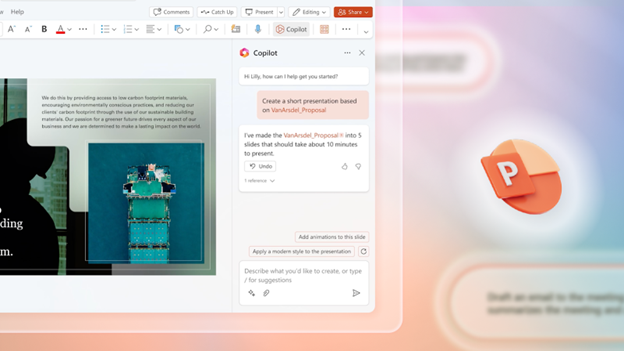
Copilot is Microsoft’s generative AI engine. It can dramatically reduce the time it takes for all types of tasks. For example, create a PowerPoint presentation from a prompt. Or have Copilot generate tasks based on a Teams meeting. Learn more about Copilot here.
Using these essential settings can maximize your Microsoft 365 experience. This can lead to improved security, efficiency, and collaboration.
Want a more detailed exploration of these settings and how to use them? Consider reaching out to our Microsoft 365 team. We’ll be happy to help you optimize and manage your tools and leverage all the benefits.
Reach out today and let’s chat about powering up your use of M365.
—
This Article has been Republished with Permission from The Technology Press.
Windows 10 has served us well. But its time is running out. Microsoft plans to end support for Windows 10 on October 14, 2025. This means no more security updates, no more patches, and no more support.
It’s time to upgrade to Windows 11. This is especially true for business users with many systems to check and upgrade. This change isn’t just about getting new features. It’s about ensuring your PC stays secure, fast, and capable.
When Microsoft stops supporting Windows 10, your computer becomes vulnerable. No more updates mean no more security patches. Hackers and malware developers will exploit these vulnerabilities. Upgrading to Windows 11 ensures you receive the latest security updates. This keeps your data and personal information safe.
Windows 11 is designed to be faster and more efficient. It optimizes your hardware, providing better performance. Whether you use your PC for work, gaming, or general browsing, you’ll notice the difference. Applications run smoother, and boot times are quicker.
Windows 11 brings a host of new features. The redesigned Start Menu and Taskbar offer a fresh, modern look. Snap Layouts and Snap Groups help you organize your workspace. Virtual Desktops allow you to create different desktops for different tasks. These features enhance productivity and make your PC experience more enjoyable.
Not all current PCs can run Windows 11. The new operating system has specific hardware requirements. Here are the basics:
These requirements might mean you need new hardware. Many older PCs do not meet these specifications. If your PC doesn’t meet these requirements, consider upgrading.
Upgrading your PC is an opportunity to modernize. Newer PCs come with better processors, more RAM, and faster storage. These improvements provide a significant boost in performance.
Consider AI-enabled PCs with Copilot. These machines offer advanced features powered by artificial intelligence. They learn your habits and optimize performance accordingly. AI can predict what you need, making your PC experience smoother and more intuitive.
Modern PCs are also more energy efficient. They use less power, which is good for the environment and your electricity bill. Newer hardware is often more efficient without compromising performance.
Windows 11 offers a cleaner, more intuitive user interface. The Start Menu is centered, providing easy access to your most-used apps. The Taskbar is simplified and customizable. These changes make it easier to navigate and use your PC.
Snap Layouts and Snap Groups enhance multitasking. You can easily organize open windows and switch between tasks. Virtual Desktops allow you to create separate desktops for work and personal use. This organization improves productivity and reduces clutter.
Windows 11 has Microsoft Teams built in. This makes it easier to connect with friends, family, and colleagues. You can quickly start a chat or video call from the Taskbar. This integration is particularly useful for remote work and staying connected.
Virtual Desktops in Windows 11 are more powerful and customizable. You can set different backgrounds for each desktop and organize your tasks better. This feature is ideal for separating work from personal use.
Waiting to upgrade increases your vulnerability. As Windows 10 approaches its end-of-support date, the risk of security threats grows. Hackers will target unsupported systems, knowing they won’t receive updates. Upgrading now minimizes this risk.
Software developers will eventually stop supporting Windows 10. New applications and updates may not be compatible. This can lead to performance issues and lost productivity. By upgrading now, you ensure compatibility with the latest software.
Beginning an upgrade for your office now gives time for a smooth rollout. You can upgrade one department at a time. This has the benefit of reducing potential disruption and spreading out the costs.
Upgrading now avoids the last-minute rush. As the end-of-support date approaches, many users will scramble to upgrade. This can lead to delays and increased demand for new PCs. Upgrading early ensures a smooth transition.
First, check if your current PC meets the Windows 11 requirements. Use the PC Health Check tool from Microsoft. This tool will tell you if your hardware is compatible.
Before upgrading, backup your data. Use an external hard drive or cloud storage. This ensures you don’t lose important files during the upgrade process.
Follow Microsoft’s instructions for upgrading. This may involve downloading the Windows 11 installation file and running the setup. If your PC isn’t compatible, consider purchasing a new one that meets the requirements.
If you’re unsure about upgrading, seek professional help. Our technology experts can make the process as easy as possible. We’ll ensure your upgrade goes smoothly and address any issues that arise.
The countdown to the end of Windows 10 has begun. Ensure your PC stays protected and up to date. Don’t wait until the last minute! We’ll be happy to guide you through a successful upgrade to ensure you avoid future headaches.
Contact us today to schedule a chat.
—
This Article has been Republished with Permission from The Technology Press.
Microsoft Copilot has been heading up the business AI charge. It’s used in Word, Excel, Edge, Windows, and more. This genAI-powered app is also showing up in
various function-related activities. The latest of which is finance processes.
Microsoft Copilot for Finance is a game-changer. It injects the power of next-generation AI into the heart of your everyday workflow. Imagine having an AI companion that understands the intricacies of finance as well as collaborates seamlessly with you.
It can help a seasoned financial analyst or a curious learner. It automates repetitive tasks and provides real-time insights. Copilot is poised to revolutionize how we navigate the fiscal realm.
Read on to see why this innovative tool should be on your financial radar.
First, let’s have an overview of this new application. Copilot for Finance is a new Copilot experience in Microsoft 365. It features AI-assisted help for financial professionals. It does this from within productivity apps they use every day.
Microsoft Copilot for Finance connects to business financial systems such as Dynamics 365 and SAP. It provides finance-based insights and guided actions in:
Finance professionals are drowning in repetitive tasks. These include data entry, review cycles, and report generation. Copilot for Finance throws a lifeline to finance professionals. It automates these mundane activities and frees up valuable time for strategic thinking. Imagine a world where you can focus on high-impact tasks: tasks like financial planning, risk analysis, and driving business growth.
Copilot for Finance isn’t just about automation; it’s about intelligence. This AI assistant learns your organization’s financial data and behavior. It surfaces insights you might have missed.
Imagine uncovering hidden trends and predicting cash flow issues as well as identifying areas for cost optimizations– all powered by AI that works seamlessly
within your existing Microsoft 365 environment.
Copilot for Finance isn’t a one-size-fits-all solution. It caters to the specific needs of different financial roles. Imagine streamlining audits with a simple prompt or simplifying collections with automated communication and payment plans. It can also speed up financial reporting with effortless variance detection. Copilot for Finance empowers every member of your finance team. It does this with role-specific workflows and features.
Copilot for Finance integrates effortlessly with your existing Microsoft 365 tools. Such as Excel, Outlook, and Teams. This means no more jumping between applications. No more struggling to import data. Imagine accessing insightful financial insights directly within your familiar workflow. This eliminates silos and streams communication across your team.
Security and compliance are paramount in the world of finance. Copilot for Finance inherits the robust security features you trust from Microsoft 365. Imagine leveraging a solution that adheres to the strictest data privacy regulations. This gives you peace of mind and ensures your financial data remains secure.
Copilot for Finance represents a significant leap forward in financial technology. It’s more than just automation. It’s about harnessing the power of AI to augment human expertise as well as transform the way finance operates.
Imagine a future where tedious tasks are a thing of the past. They’re replaced by a world of data-driven insights and strategic decision-making, all at the click of a button or text prompt.
Microsoft Copilot for Finance is currently available for early adopters. Do you want to experience its transformative potential? Here’s how to get started:
The world of finance is evolving rapidly. Microsoft Copilot for Finance empowers you to embrace this change. As well as navigate the future with confidence. Copilot for Finance offers AI-powered insights, streamlined workflows, and seamless integration. It could soon become an indispensable tool for every
finance professional.
AI tools in Copilot are dominating business transformations. You can join, or risk missing out on what AI has to offer. We can help you unlock the full potential of Copilot in Microsoft 365. As well as propel your business forward with AI power.
Contact us today to see how we can help your business.
—
This Article has been Republished with Permission from .
What are some of the key differentiators that can propel small businesses forward? They include efficiency, productivity, and innovation. Microsoft has expanded the availability of one of its most dynamic tools to SMBs. A tool that can be a real game-changer for growth.
Copilot for Microsoft 365 is a powerful new addition to the M365 suite. It was first offered to enterprise customers only. But Copilot is now open to businesses of all sizes. As long as they have Microsoft 365 Business Standard or Business Premium.
Microsoft has positioned Copilot to revolutionize the way SMBs work. This innovative AI tool empowers users to generate creative content. It also streamlines workflows and unlocks new levels of productivity.
Let’s explore the exciting possibilities Copilot unlocks for your growing business.
Copilot leverages the power of large language models (LLMs). LLMs are AI models trained on massive datasets. This enables Copilot to understand natural language and generate contextual responses. It offers intelligent suggestions and content within your Microsoft 365 applications.
Here’s how Copilot translates this technology into real-world benefits for your small business:
Struggling with writer’s block or repetitive tasks like email writing? Copilot can suggest text responses and complete sentences. It can even draft entire emails based on your initial input.
With just a few guiding prompts, your team can:
Copilot automates repetitive tasks and streamlines workflows by offering intelligent suggestions. This can free up valuable time for your employees. It allows them to focus on more strategic initiatives. As well as high-value projects or core business activities. Imagine automatically generating reports or automating data entry tasks. This unleashes your team’s energy for creative problem-solving and innovation.
Clear and concise communication is vital for any successful business. Copilot facilitates this by doing things like:
Improved communication fosters better collaboration within teams. This can lead to streamlined project execution and enhanced client interactions.
Copilot provides context-aware guidance and suggestions. All while you work with your familiar Microsoft 365 applications. This can significantly reduce the learning curve for new employees. It allows them to become proficient in using the full potential of the suite more quickly. Imagine onboarding new team members with ease. As well as empowering them to contribute meaningfully from day one.
Copilot’s capabilities extend beyond generic productivity enhancements. Here’s a glimpse into how different roles within your SMB can leverage Copilot:
Generate compelling marketing copy for social media campaigns. Craft tailored sales emails with targeted messaging. Develop engaging presentations with Copilot’s creative text suggestions and language model capabilities.
Respond to customer inquiries with increased efficiency and accuracy. Use Copilot’s AI-powered suggestions for crafting clear and concise responses. Imagine resolving customer issues faster and fostering a more positive customer experience.
Develop comprehensive project plans. Automate progress reports with a few text prompts. Collaborate seamlessly with team members using Copilot’s intelligent features. Streamline project management. Ensure everyone is on the same page from conception to completion.
Overcome writer’s block and generate fresh ideas for website copy. Teams can leverage Copilot’s help in brainstorming and content creation in many areas. Imagine producing high-quality content consistently. All while keeping modern audiences engaged and driving brand awareness.
Automate data entry tasks and improve data analysis with Copilot’s intelligent features. Generate reports with prompts for enhanced clarity. Imagine no more struggling to create reports. Gain valuable insights from data faster.
The good news is that Copilot for Microsoft 365 is readily accessible to SMBs. It integrates seamlessly with your existing environment. Here’s how you can empower your team to leverage this powerful tool:
Copilot for Microsoft 365 is not just another software update. It’s a game-changer for small businesses. By embracing this innovative AI tool, you can unlock a new level of efficiency. As well as empower your employees to achieve more.
Need some help from Microsoft 365 experts? Our team can guide you in using this resource to the fullest.
Contact us today to learn more.
This Article has been Republished with Permission from .
Calendars, task lists, and project planning are important business tools. Many people use Microsoft’s apps to power these processes. Including Planner, Microsoft To Do, and Project for the web.
These tools help keep processes on track and enable task accountability. But they’re separate apps. Switching between apps can be cumbersome. It adds more complexity to a workflow.
On average, employees switch between 22 different apps 350 times per day.
Microsoft is putting a dent in app overload. The company is rolling out a brand-new version of Microsoft Planner in early 2024. It’s packed with exciting features designed to simplify your project management journey.
What apps does the new Planner include?
The new Microsoft Planner combines:
The new Planner promises to be a powerful tool for staying organized. As well as boosting collaboration and achieving your goals with more ease.
Say goodbye to juggling several apps and hello to a streamlined experience. The new Planner goes beyond basic to-do lists. It seamlessly integrates tasks, plans, and projects under one roof.
This means you can manage everything from large to small. Including simple daily tasks to complex multi-phased projects. And do it all within a single, intuitive interface.
You can use the new Microsoft Planner from within Microsoft Teams or via a web browser. Here are some of the exciting things you will be able to do with it.
Collaboration is key in today’s fast-paced world. Working remotely has become the new normal. Meaning tools need to keep people coordinated wherever they are.
The new Planner empowers teams to work together seamlessly. Real-time updates ensure everyone stays on the same page. Features like shared task ownership and comments foster clear communication and efficient collaboration.
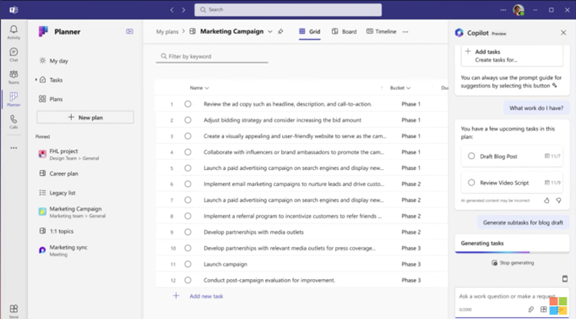
The new Planner incorporates the power of AI with Microsoft Copilot built in. This intelligent assistant helps you stay on top of your work. It can suggest relevant plans, tasks, and goals based on your needs and context. It can even analyze your progress and suggest adjustments to keep you on track.
One size doesn’t fit all. The new Planner understands that. It offers flexibility to cater to both individual needs and complex enterprise projects. Microsoft Planner can adapt to your specific requirements. It’s flexible for use to fill big or small needs. Use it for managing a personal grocery list. Or to plan and deploy a large-scale company transformation.
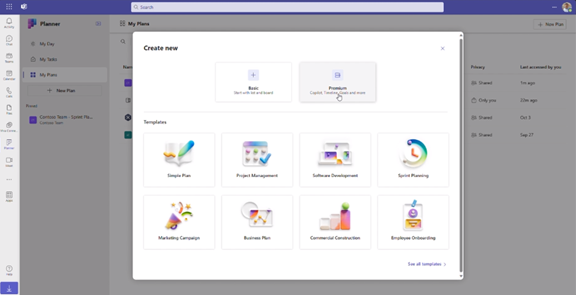
You don’t have to start from “square 1,” unless you want to. Microsoft Planner provides several ready-made templates. You can use these to get started on a new project or goal quickly.
You’ll see templates for things like:
Here’s a sneak peek at some key features of the new Microsoft Planner 2024:
Mark your calendars! The new Planner will be available in preview in early 2024. It will become generally available soon after. Some features will roll out later in the year. You can visit Microsoft’s site to sign up for updates and see a feature roadmap.
The new Microsoft Planner 2024 is an example of a trend we’ve seen in the digital world. Less is more. Meaning, fewer apps to juggle and more streamlined interfaces.
Planner’s powerful features make it an invaluable tool. One that both individuals and teams alike can leverage to streamline workflows. It also has an intuitive interface and AI-powered assistant to drive productivity.
Managing both legacy and new cloud tools can be complex. Features often go underutilized. And security can be a big problem if it’s not done right. Our team of business software experts is here to help you.
Contact us today to schedule a chat.
This Article has been Republished with Permission from .